How can we help?
How to enter Annual Tax Statement components for Betashares Direct
Betashares Direct is an IDPS-like scheme. For tax purposes you're treated as holding the underlying ETFs and shares directly, so each ETF is a separate trust and needs its own set of tax components in Sharesight.
At tax time Betashares Direct sends you a Betashares Direct Annual Tax Statement. The catch is that this is a consolidated statement — it combines every holding into a single set of figures, with all of your ETFs added together for each tax component. Those combined totals can't be entered into Sharesight, because Sharesight records components against each holding separately. You'll need the per-symbol breakdown instead.
Before you start
- Your Betashares Direct Annual Tax Statement for the financial year.
- Your Betashares Direct trades already imported into your Sharesight portfolio.
Step 1 — Request the breakdown by symbol
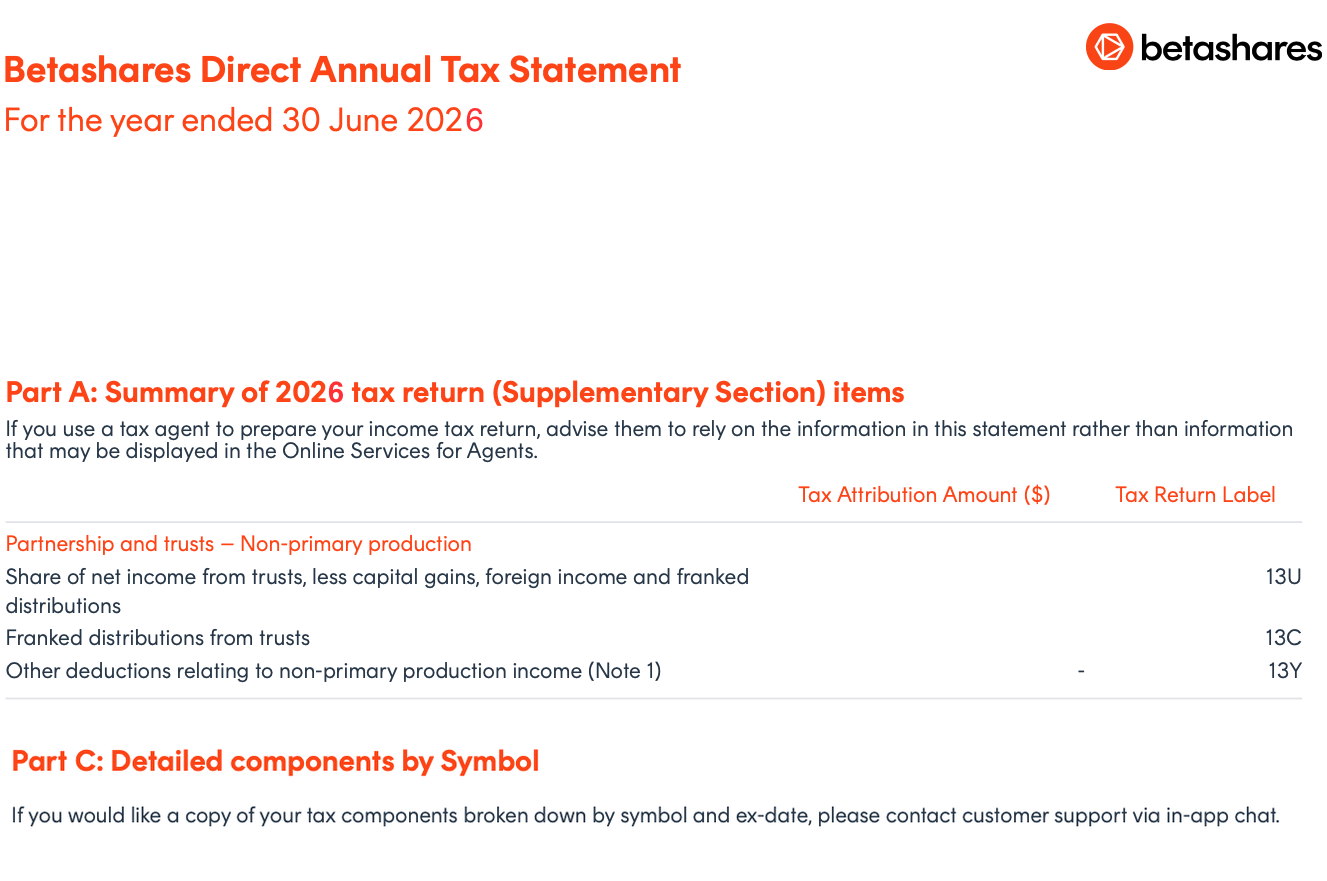
Part C of your annual tax statement notes that detailed components by symbol are available on request. Contact Betashares Direct through in-app chat and ask for your tax components broken down by symbol and ex-date.
Step 2 — Open the spreadsheet
You'll receive a CSV file. It has one row per distribution, starting with the symbol, ex-date and payment date, followed by around 60 columns of tax components.
Most of the columns you need are named directly after the tax return labels — part_a_13u is label 13U, part_a_18a is label 18A, and so on. This is what makes the mapping straightforward.
Step 3 — Group the rows by symbol
Sort or filter the spreadsheet by the symbol column (column B). Each symbol needs its own entry in Sharesight.
Group on the ex-date column (column C), not the payment date. An ETF distribution with an ex-date of 1 July is usually paid in mid-July, but it belongs to the financial year that just ended. If you group by payment date, that distribution lands in the wrong year — and for quarterly-paying ETFs the June quarter is often the largest of the four.
Step 4 — Add a total row for each symbol
For each symbol, add a row underneath that sums every column.
If the file already has a TOTAL row at the bottom, only use it if you hold a single ETF. When you hold more than one, that row combines them all and can't be used.
Step 5 — Enter each symbol's totals into Sharesight
Enter one set of components per holding, using that symbol's totals for the financial year. Open the Enter Annual Tax Statement Components form — see How to enter AMIT components in Sharesight for how to reach it — then map the spreadsheet columns to the Sharesight fields using the tables below.
Income
| Column | Spreadsheet heading | Sharesight field |
|---|---|---|
| O | part_a_13u | Share of net income from trusts (13U) |
| P | part_a_13c | Franked distributions from trusts (13C) |
| Q | part_a_13q | Share of franking credits from franked dividends (13Q) |
| R | part_a_13r | Share of credit for TFN amounts withheld (13R) |
Capital gains
You enter three fields here — Sharesight then calculates 18A and 18H for you.
| Column | Spreadsheet heading | Sharesight field | How to work it out |
|---|---|---|---|
| AM, AN | tap_discounted_capital_gains_trusts, ntap_discounted_capital_gains_trusts | Discounted capital gains | Add both |
| AO–AT | tap_other_capital_gains_trusts, ntap_other_capital_gains_trusts, tap_indexed_capital_gains_trusts, ntap_indexed_capital_gains_trusts, ncmi_capital_gains_trusts, exncmi_capital_gains_trusts | Capital gains | Add all six |
| — | — | CGT concession (AMIT CGT gross-up) | Enter the same value as your Discounted capital gains field above (equivalently, T − S) |
The other two capital-gains fields are calculated by Sharesight — don't enter them:
- Net capital gain (18A) — column S
part_a_18a - Total current year capital gains (18H) — column T
part_a_18h
Check your work: once the three entry fields are in, Sharesight's 18A should match column S and 18H should match column T.
Foreign income
| Column | Spreadsheet heading | Sharesight field |
|---|---|---|
| U | part_a_20e | Assessable foreign source income (20E) |
| V | part_a_20m | Other net foreign source income (20M) |
| X | part_a_20o | Foreign income tax offset (20O) |
Watch column W. It sits between V and X and is part_a_20f, not the tax offset. Check the heading rather than counting across.
Cost base adjustments
| Column | Spreadsheet heading | Sharesight field |
|---|---|---|
| BI | cost_base_decrease_amount | AMIT decrease (AMIT excess) |
| BH | cost_base_increase_amount | AMIT increase (AMIT shortfall) |
These two don't change your income this year, but they adjust your cost base and change your capital gain when you sell. Enter them even when the amounts look small.
If the AMIT Cost Base Increase field is showing negative numbers in the file — in Sharesight, this figure needs to be entered as a positive value, without the minus sign.
Leave blank
| Column | Spreadsheet heading | Sharesight field |
|---|---|---|
| BK | tax_deferred_amount | Tax deferred — do not enter |
| BG | non_assessable | Non assessable — do not enter |
| AC | interest_trusts | Interest — do not enter |
These columns may show a value, but the amounts are already counted elsewhere. Interest is included in 13U, and cost base movements are already captured by the AMIT increase and decrease amounts. Entering them again double counts.
Repeat for each symbol until every holding has its own set of components entered.
⚠️ You must Save and confirm. Until you save and confirm the distribution, its attributed discounted and other capital gains won't appear in your Capital Gains Tax Report — so your capital gains will be understated compared with the ATO's pre-fill in myTax. This applies whether Sharesight pre-filled the estimated components for you or you entered them manually.
Tip — reconcile at the right level. Each symbol's distributions in Sharesight should add up to that symbol's totals in your per-symbol breakdown. The combined figures on the original consolidated statement will only match the sum across all of your holdings, not any single ETF.
See also: ETFs in Sharesight | Annual Tax Statement Components
Sharesight does not provide taxation advice and this does not constitute personal taxation advice. If you have any questions about your tax position we recommend you contact your accountant or tax advisor.
FAQ
Why does the AMIT Cost Base Increase sometimes show as a negative number in the Statement?
A Cost Base Increase adds to the cost base of your investment for tax purposes — it doesn't reduce it. The negative sign you sometimes see in the spreadsheet reflects the effect on the resulting capital gain, not the direction of the adjustment to the cost base itself.
For example, say your original cost base is $1,000 and you have a $50 Cost Base Increase, so your adjusted cost base becomes $1,050. If you later sell for $1,200:
- Before the adjustment: $1,200 − $1,000 = $200 capital gain
- After the adjustment: $1,200 − $1,050 = $150 capital gain
The $50 increase to the cost base has reduced the capital gain by $50, and some reports show that as −$50 — because they're presenting the adjustment in terms of its impact on the gain, not as a movement in the cost base. The minus sign doesn't mean $50 was removed from the cost base.
In Sharesight, always enter the AMIT Cost Base Increase as a positive value, even if it shows as negative in the file you received.
Last updated 11th September 2026