How can we help?
Add buy & sell trades or adjustments manually
You can add additional buy and sell trades or adjustments manually for any holding in your Sharesight portfolios.
Note: Before adding trades manually, check if your broker supports automatic trade forwarding to Sharesight. Visit the Sharesight partners page, search for your broker, and look for the ongoing or future trades section in your broker's guide for setup instructions.
Note: These steps are for adding a trade to an existing holding already in your portfolio. To add a brand new holding that isn't in your portfolio yet, see How to add a new holding.
1 — On the Portfolio Investments Page, click on the holding.
2 — On the Individual Holding Page, select the Trades & Income tab.

3 — Click the Add trade or adjustment button.

4 — From the type dropdown menu, select the transaction or adjustment type.
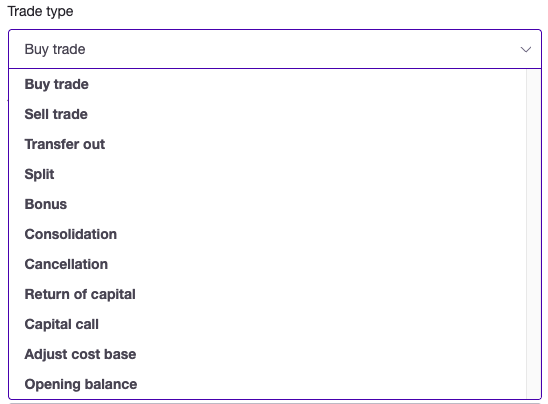
Depending on the transaction or adjustment type, the Enter a new Trade form fields will change. The transaction or adjustment types are:
- Buy – Record a purchase of shares or units, adding to your holding at the price you paid.
- Sell – Record a sale of shares or units, reducing your holding and creating a capital gains (CGT) event.
- Transfer Out – Close a position (bring the quantity to zero) without triggering a capital gains (CGT) event at any transfer-out price, useful for transfers that don't involve CGT such as moving a holding between portfolios, inheritance, or relationship separation.
- Split – Record a share split, which increases your number of shares and proportionally lowers the price per share, with no change to the total value (e.g. a 2-for-1 split).
- Bonus – Record a bonus issue of additional shares received at no cost, increasing your quantity without any cash outlay.
- Consolidation – Record a share consolidation (reverse split), which reduces your number of shares and proportionally increases the price per share.
- Cancellation – Record shares that have been cancelled and removed from your holding.
- Return of Capital – Record a return of capital distribution, which reduces the cost base of your holding.
- Capital Call – Record an additional capital contribution called by the investment, which increases the cost base of your holding without changing the quantity held.
- Adjust Cost Base – Manually reduce the cost base of your holding without changing the quantity held.
- Opening Balance – Record the starting quantity and cost of a holding you already owned before you began tracking it in Sharesight.
5 — Fill in all the fields for the trade or adjustment. For a buy or sell trade, Sharesight will suggest a share price underneath the Share Price field. Click on the price for it to be entered in the share price field.
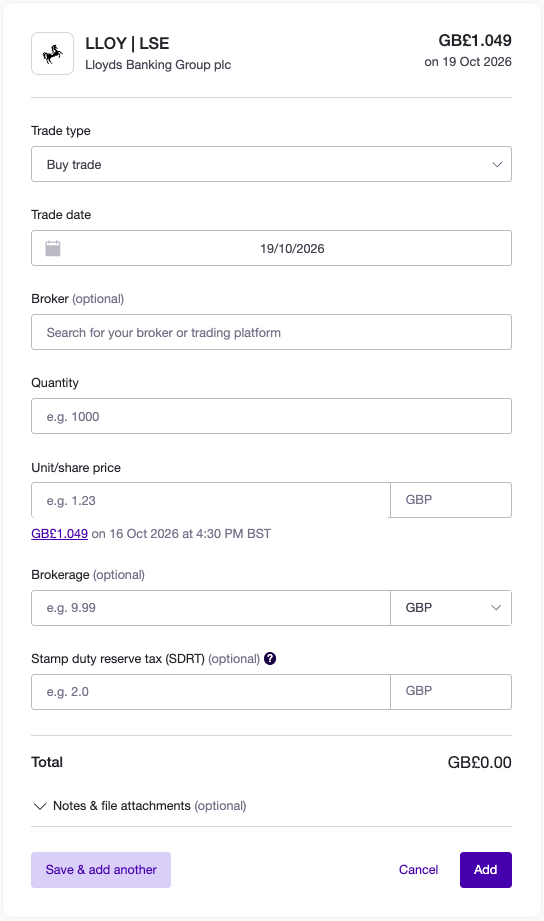
6 — Click Add.
Note: If you receive a Saving this trade would result in a negative number of shares being held error message, it means you are trying to save a trade that would result in a negative number. Sharesight will not allow you to save a trade that would result in a negative quantity position. For this reason, it is best to record additional trades in the date order that they occurred.
Enter a new Trade form fields:
Type – Select the type of trade or adjustment that you want to record.
Date of Trade – Enter the date that the transaction occurred. You can do this by clicking in the date field and entering the date in the format displayed or by clicking the date in the calendar. If using the calendar, select the year and month before the day.
Quantity – Enter the number of units bought/sold in the transaction.
Share Price – Sharesight will suggest the closing price on the transaction date. Click on this figure to use the suggested price or type your own price into the field.
Exchange Rate (only displayed for overseas shares) – Sharesight will suggest the closing exchange rate on the transaction date. Click on this figure to use the suggested rate, or type your own exchange rate into the field.
Brokerage (optional) – Enter any brokerage fee you paid or were charged, including any tax paid on the brokerage.
Stamp Duty Reserve Tax (SDRT) (optional) – A UK government tax charged at 0.5% of the trade value on the electronic purchase of chargeable securities. This field only appears on eligible buy trades – broadly UK shares and UK corporate debt with equity-like characteristics (such as debt convertible into shares), shares in UK-incorporated companies where the transfer is electronic, and securities listed on the LSE – so it won't show for holdings outside these securities. Once the quantity and price are entered, Sharesight suggests a value of 0.5% of the trade value; click the suggestion to use it.
Comments (optional) – Use the comments field to record any additional information about the transaction. This could include the reason you bought or sold the units, or any particular circumstances about the transaction.
File Attachments (optional) – You may upload a file to store alongside the trade. Click the Choose a file button.
Note: You may only store one file per holding at a time and Sharesight will only display the latest file. iPhone/iPad users: Unfortunately, due to a limitation with the mobile iOS browser, you may only select files from your photo library. So you may choose to take a photo of your file and upload it, or upload the actual file from a computer.
Save Button – The save button will save the transaction and return you to the Individual Holding Page.
See also: Editing or deleting trades and adjustments | Individual Holding Page
Note: When you save an automatic generated dividends or adjustments, the lightning bolt icon will be removed and the dividends or adjustments will be saved against the holding. This means that it will no longer automatically adjust itself if you alter historic purchase or sale information.
Last updated 19th October 2026