How can we help?
Add, search, edit or delete a cash transaction
Jump to: Add a transaction | Search a transaction | Edit a transaction | Delete a transaction
Add a transaction
There are two ways to add a cash transaction — individually or in bulk via CSV.
Add individually
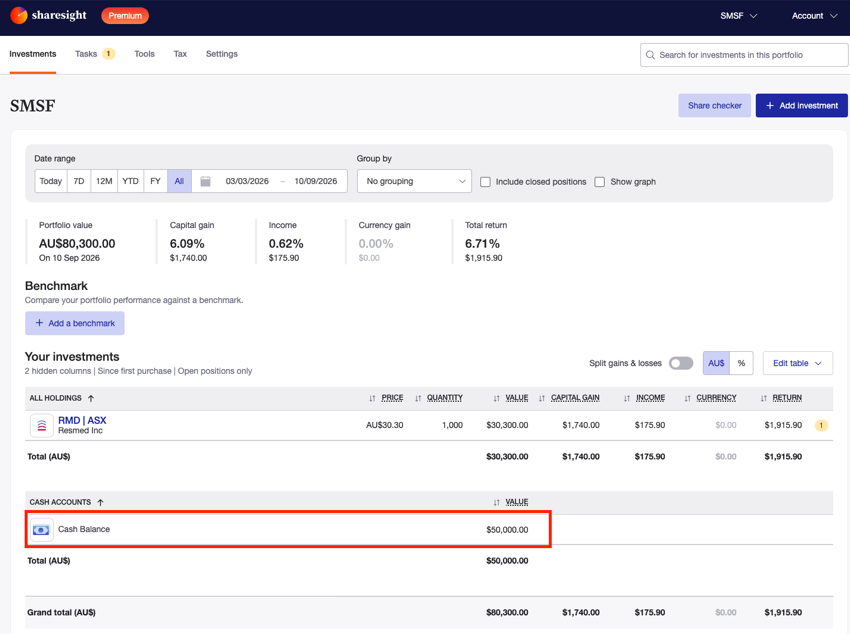
1 — On the Portfolio Investments Page, click on the Cash Account.
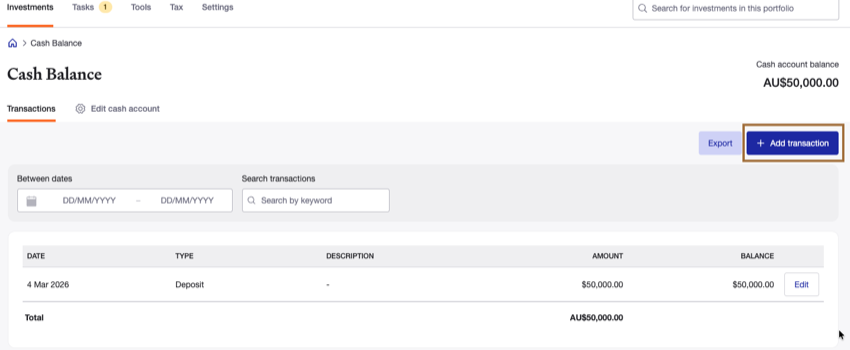
2 — On the Cash Account page, click Add transaction.
3 — Select Individually add transaction.

4 — Select the date of the transaction from the calendar.
5 — Select the transaction type from the dropdown menu.
| Transaction type | Description |
|---|---|
| Deposit | Money added to the account, e.g. a cash transfer in from your bank or a broker settlement. |
| Withdrawal | Money taken out of the account, e.g. a transfer to your bank or funds used to cover a purchase. |
| Interest payment | Interest earned on the account balance, e.g. savings interest or term deposit interest. This will appear in your Taxable Income Report. |
| Interest charged | Interest charged on the account, e.g. margin loan interest or overdraft fees. |
| Fee | A charge applied to the account, e.g. brokerage or account-keeping fees. |
| Fee reimbursement | A fee that was previously charged but has since been refunded or reimbursed. |
6 — Type the amount of the transaction in the Amount field.
7 — Type a description of the transaction for your reference in the Description field. This is optional, and the transaction can still be searched for by its description.
8 — Click Add to save the transaction to the Cash Account.

Bulk import via CSV
1 — On the Portfolio Investments Page, click on the Cash Account.
2 — On the Cash Account page, click Add transaction, then select Upload via spreadsheet.
3 — Download the CSV template, fill in your transactions, and upload the file.
Search a transaction
Two ways to search a cash account:
- Search transactions — type a keyword, such as the description or transaction type, into the Search transactions field.

- Between dates — click on the Between dates field to open the date picker.

Choose a preset range (e.g. Today, This month, Last quarter, Since inception) from the list on the left, or select a custom start and end date directly on the calendar.
Edit a transaction
1 — Search or scroll to find the transaction you want to adjust, then click Edit.

2 — The date of the transaction can be changed.
3 — The type of the transaction cannot be changed. To change the type you will need to delete the transaction and then add a new transaction.
4 — The amount of the transaction can be changed.
5 — The description of the transaction can be changed.
Note that the description may be used to search for transactions.
6 — Click Save.

Delete a transaction
1 — Search or scroll to find the transaction you want to delete, then click Edit.
2 — Click Delete.

3 — Click Delete transaction to confirm.
Note: This permanently deletes the transaction and cannot be undone.

Note (Australia): Interest payment transactions are automatically included in your Taxable Income Report. Sharesight will list these alongside your dividend income when you run the report, so you can include them in your Australian tax return.
Last updated 17th September 2026