How can we help?
Add, search, edit or delete a cash transaction
Jump to: Add a transaction | Search a transaction | Edit a transaction | Delete a transaction
Add a transaction
There are two ways to add a cash transaction — individually or in bulk via CSV.
Add individually
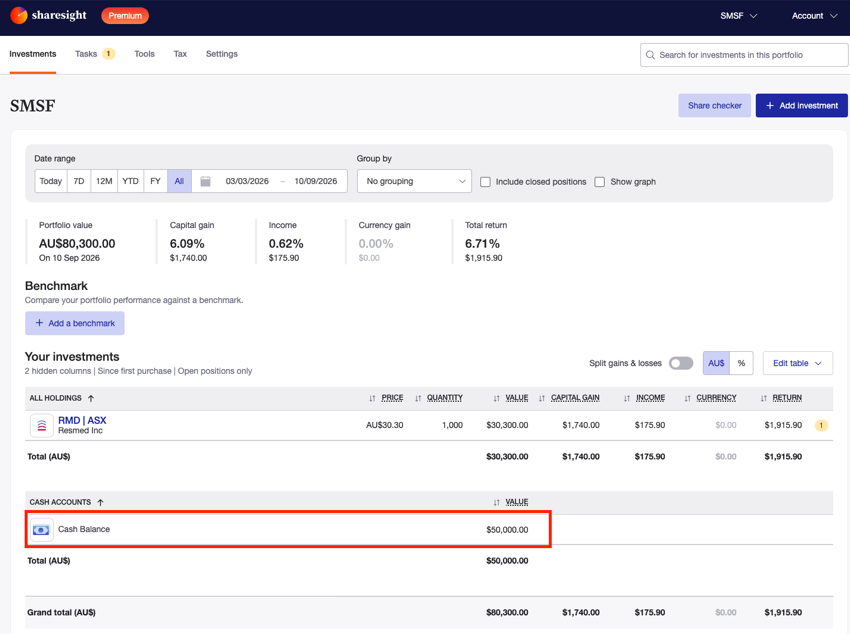
1 — On the Portfolio Investments Page, click on the Cash Account.
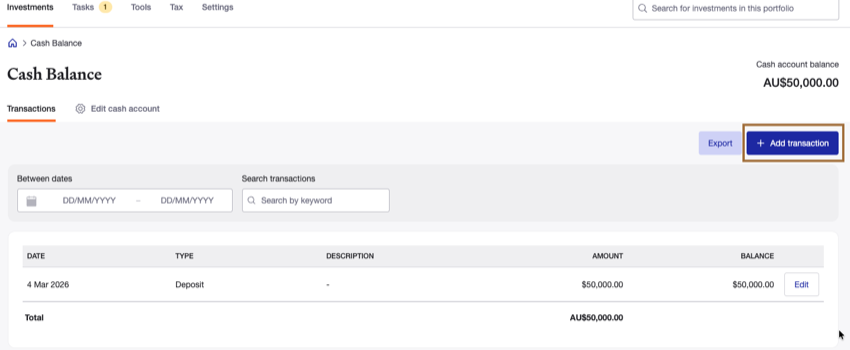
2 — On the Cash Account page, click Add transaction.
3 — Select Individually add transaction.

4 — Select the date of the transaction from the calendar.
5 — Select the transaction type from the dropdown menu.
| Transaction type | Description |
|---|---|
| Deposit | Money added to the account, e.g. a cash transfer in from your bank or a broker settlement. |
| Withdrawal | Money taken out of the account, e.g. a transfer to your bank or funds used to cover a purchase. |
| Interest payment | Interest earned on the account balance, e.g. savings interest or term deposit interest. This will appear in your Taxable Income Report. |
| Interest charged | Interest charged on the account, e.g. margin loan interest or overdraft fees. |
| Fee | A charge applied to the account, e.g. brokerage or account-keeping fees. |
| Fee reimbursement | A fee that was previously charged but has since been refunded or reimbursed. |
6 — Type the amount of the transaction in the Amount field.
7 — Type a description of the transaction for your reference in the Description field. This is optional, and the transaction can still be searched for by its description.
8 — Click Add to save the transaction to the Cash Account.

Bulk import via CSV
1 — On the Portfolio Investments Page, click on the Cash Account.
2 — On the Cash Account page, click Add transaction, then select Upload via spreadsheet.
3 — Download the CSV template, fill in your transactions, and upload the file.
Search a transaction
Two ways to search a cash account:
- Search transactions — type a keyword, such as the description or transaction type, into the Search transactions field.

- Between dates — click on the Between dates field to open the date picker.

Choose a preset range (e.g. Today, This month, Last quarter, Since inception) from the list on the left, or select a custom start and end date directly on the calendar.
Edit a transaction
1 — Search or scroll to find the transaction you want to adjust, then click Edit.

2 — The date of the transaction can be changed.
3 — The type of the transaction cannot be changed. To change the type you will need to delete the transaction and then add a new transaction.
4 — The amount of the transaction can be changed.
5 — The description of the transaction can be changed.
Note that the description may be used to search for transactions.
6 — Click Save.

Delete a transaction
1 — Search or scroll to find the transaction you want to delete, then click Edit.
2 — Click Delete.

3 — Click Delete transaction to confirm.
Note: This permanently deletes the transaction and cannot be undone.

Last updated 17th September 2026