How can we help?
Confirming multiple and individual unconfirmed transactions
Sharesight automatically populates historical dividends and corporate actions (such as splits and consolidations) when you add a buy or sell trade. Confirming a transaction is how you verify the amount matches what you actually received and lock it in permanently.
Confirming multiple unconfirmed transactions
From the Individual Holding Page you can bulk confirm all unconfirmed transactions for a holding in a few steps.
-
On the Portfolio Investments page, click on the holding.
-
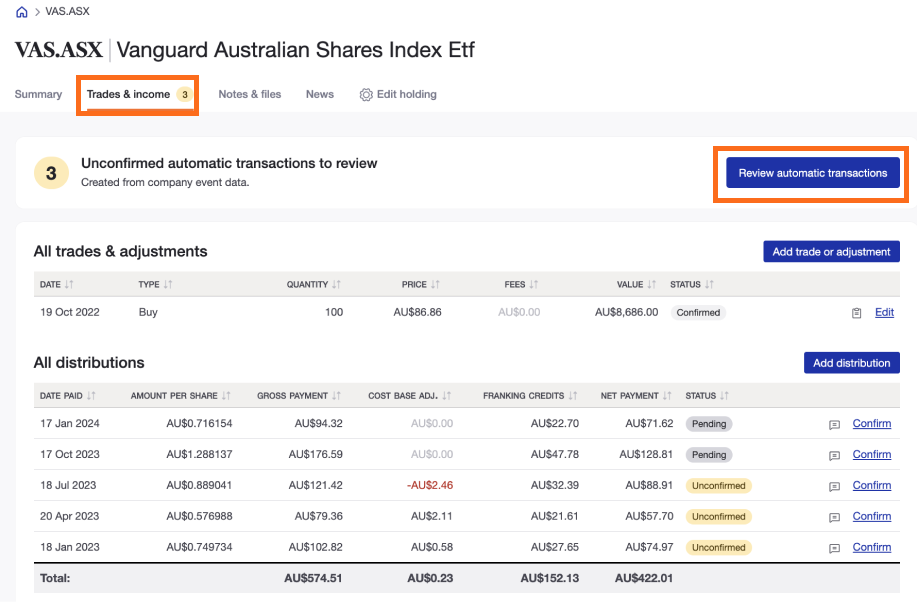
On the Individual Holding Page, select the Trades & income tab and click Review automatic transactions.
-
Each unconfirmed transaction will appear in the Unconfirmed transactions pop-up window. Review the transaction data and untick any transactions you want to amend later. To edit a transaction immediately, click Edit — this opens the Edit a Payment window. After saving, return to steps 1 and 2 to continue confirming the remaining transactions.
-
Once you are satisfied, click Confirm transactions.
Confirming individual unconfirmed transactions
Use this method if you want to review and confirm a single transaction at a time.
-
On the Portfolio Investments page, click on the holding.
-
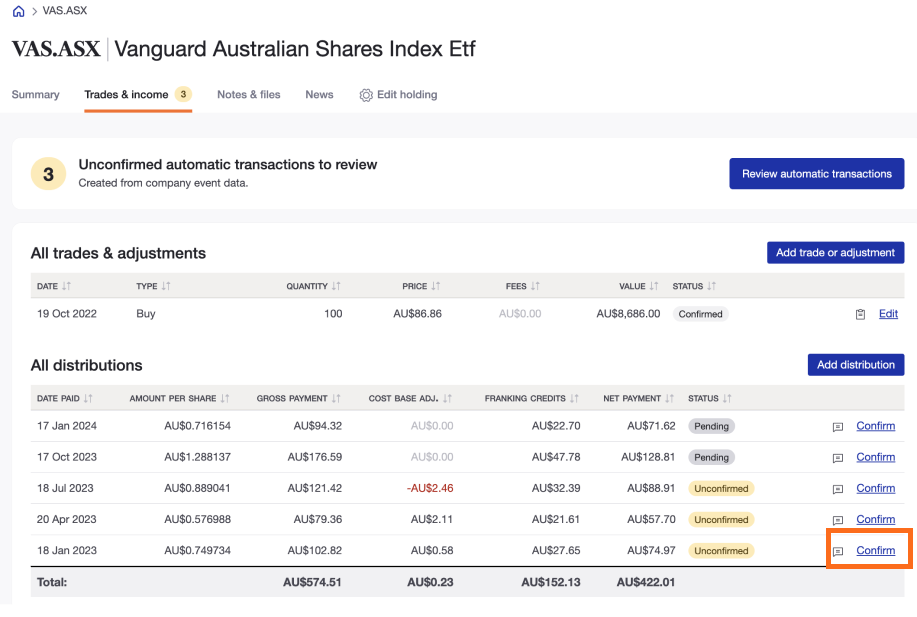
On the Individual Holding Page, select the Trades & income tab and click Confirm on the transaction you want to review.
-
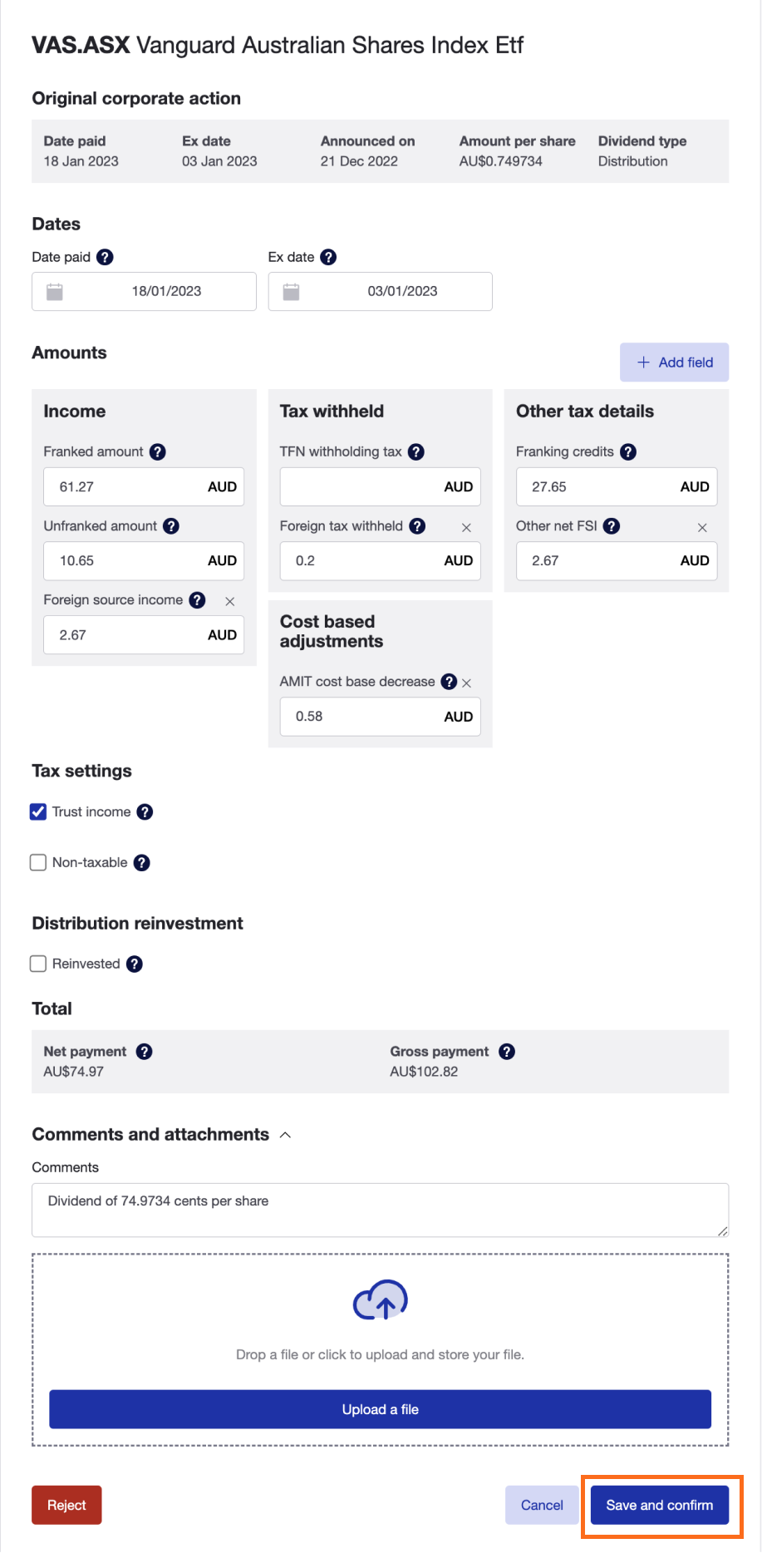
Review the transaction details in the Edit a Payment pop-up window and make any changes if needed.
-
Click Save and confirm payout.
Troubleshooting
If after confirming a dividend the amount still doesn’t look right, see Why does my dividend look incorrect? for the most common causes, including foreign withholding tax, trust distributions, DRP, and currency conversion.
Last updated 29th June 2026