How can we help?
Automate custom investment dividends across portfolios
This guide explains how to record a dividend once for a custom investment and have it automatically flow through as income to every portfolio in your account that holds it, instead of adding the dividend manually in each portfolio.
When to use this
If the same custom investment is recorded in more than one portfolio, you don't need to add its dividend to each portfolio one by one. Recording the dividend against the custom investment itself automatically applies it to every portfolio that holds it.
Before you start
- This applies to custom investments with a share-based income type (e.g. Ordinary Shares, Preference Shares), which have a Dividends tab. Custom investments set up as Fixed Interest use a Coupon rates tab instead, since their income is interest rather than dividends.
- The custom investment's visibility must be set to All my portfolios for the dividend to apply everywhere it's held. Check this on the instrument's Details tab, under "Which portfolios would you like this instrument code to be visible to?". If it's set to a single portfolio, the dividend will only apply to that portfolio.
- Each portfolio needs to already hold units of the custom investment (i.e. have a trade recorded) for the dividend to generate income there — adding a dividend to the instrument does not create a holding on its own.
Steps
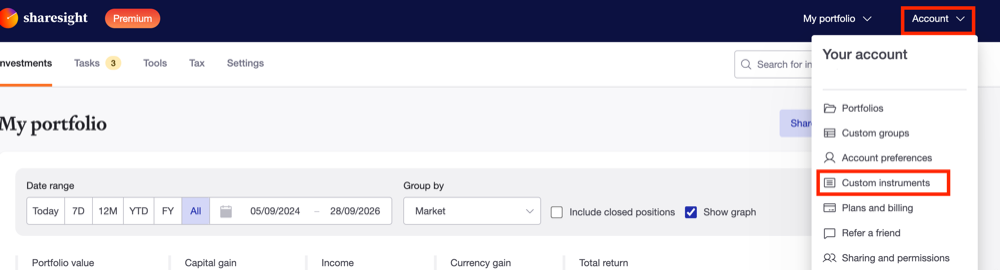
- Click Account in the top-right corner of any screen, then select Custom instruments.
- On the Custom instruments list, click the name of the custom investment you want to add a dividend for.
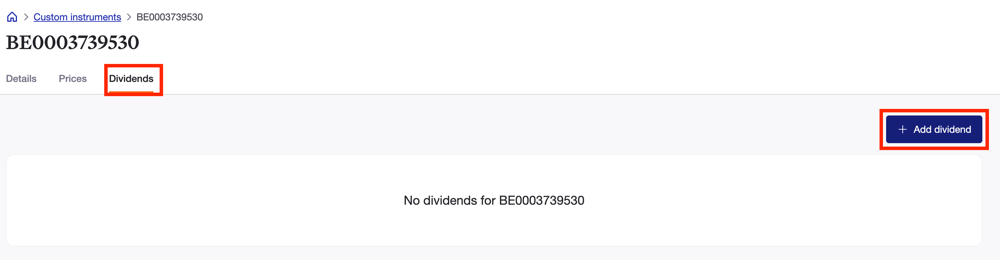
- Click the Dividends tab, then click + Add dividend.
- Fill in the dividend details — date announced, ex date, paid date, currency, amount per share, tax credit per share, and franked % as applicable — and tick Automatic reinvestment enabled if the dividend is a DRP. Click Add to save.
Result
The dividend now appears on the custom investment's Dividends tab and is automatically recorded as income in every portfolio that holds this custom investment, so there's no need to add it separately in each one.
Last updated 28th September 2026